
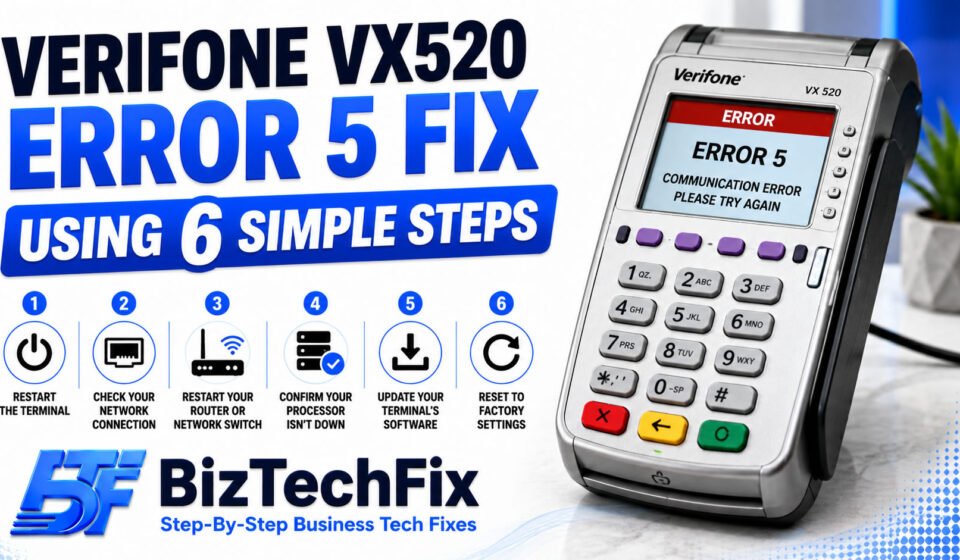
Verifone VX520 Error 5 Fix Using 6 Simple Steps
Seeing error 5 on your Verifone VX520 can bring your checkout line to a complete stop. Customers are waiting, payments won’t go through, and the error message alone doesn’t tell you much about what’s actually wrong.
This Verifone VX520 error 5 fix guide walks through the most common causes and the exact steps to get your terminal working again, without needing to call Verifone VX520 support right away.
What does error 5 mean on a Verifone VX520?
Error 5 on a Verifone VX520 usually points to a communication problem between the terminal and the payment network, rather than a physical hardware failure. This kind of Verifone credit card machine troubleshooting starts with understanding what’s likely causing it before trying a Verifone VX520 error 5 fix.
- Network connection dropped: The terminal lost its connection to the payment processor, either through a wifi, Ethernet, or phone line link, which is one of the most common triggers for this error.
- Incorrect terminal configuration: Settings related to your payment processor or network setup may have changed or become corrupted, causing the terminal to fail communication checks.
- Outdated terminal software: Running an older software version on your Verifone VX520 can cause communication errors that have already been resolved in newer updates.
- Processor or network outage: Sometimes the issue isn’t your terminal at all, but a temporary outage on your payment processor’s end.
- Loose or faulty cable connection: For terminals connected by Ethernet or phone line, a loose or damaged cable can trigger the same communication error.
Square Contactless and Chip Reader: 7 Easy Setup
Verifone VX520 error 5 fix: step-by-step
Work through these steps in order for the fastest Verifone VX520 error 5 fix.
Step 1: Restart the terminal
Turn off your Verifone VX520 completely, wait about ten seconds, then power it back on. This clears temporary communication glitches and is the first step in almost any Verifone VX520 error 5 fix.
Step 2: Check your network connection
If your terminal connects over Ethernet, confirm the cable is firmly plugged in on both ends. If it connects over wifi, make sure your network is online and other devices can connect normally. A dropped connection is one of the most common reasons this error appears, and checking it early often speeds up your Verifone VX520 error 5 fix.
Step 3: Restart your router or network switch
Unplug your router or network switch, wait about thirty seconds, then plug it back in. Give it a minute to fully restart before testing your Verifone VX520 again, since this resolves many connection-related errors on its own.
Step 4: Confirm your processor isn’t experiencing an outage
Check with your payment processor or acquiring bank to see if there’s a known outage affecting terminals in your area. If other merchants are reporting the same issue, the problem is likely outside your terminal entirely.
Step 5: Update your terminal’s software
Check whether a software update is available for your Verifone VX520 and install it if so. An outdated version is a common but often overlooked cause behind a recurring error 5, and applying the latest update is often the most reliable Verifone VX520 error 5 fix available.
Step 6: Reset the terminal to factory settings
If the error persists after trying everything else, a factory reset may resolve deeper configuration issues, and it’s often the final step in a Verifone VX520 error 5 fix when other steps don’t work. Keep in mind this will remove custom settings, so you may need your processor’s help to reconfigure the terminal afterward.
For issues with cabling or connecting your terminal to Ethernet, our Network Connectivity guides cover setup and troubleshooting in more detail.
Toast POS Not Printing Receipts? 7 Easy Fixes
When to contact Verifone support
If you’ve worked through this Verifone VX520 error 5 fix guide and the error keeps coming back, it’s worth reaching out to Verifone VX520 support directly. They can check for account-level or processor-side issues that aren’t visible from the terminal itself. Our POS Terminals category also covers additional troubleshooting guides for other common Verifone error codes and terminal issues.
Preventing error 5 from happening again
Once your terminal is back online, a few habits can help avoid needing another Verifone VX520 error 5 fix down the line. Keep your Verifone VX520 software updated, avoid overloading your network with too many connected devices, and check cable connections periodically rather than waiting for a problem to show up.
If your business relies on a stable connection for payments, having a backup network option can prevent a repeat of this error from stopping sales completely.
Square Terminal Not Charging? 7 Easy Fixes
Frequently Asked Questions
How do I reset a Verifone VX520?
To reset a Verifone VX520, hold down the power button until the device restarts, or access the settings menu for a full factory reset if a simple restart doesn’t resolve the issue. A factory reset will require reconfiguring your processor settings afterward.
How do you reprint a batch settlement on a Verifone VX520?
Batch settlement reports can usually be reprinted through the terminal’s reports or admin menu, where you can select the most recent batch and choose the reprint option. Exact menu steps can vary slightly depending on your processor’s configuration.
How do you connect a Verifone VX520 to Ethernet?
Connect an Ethernet cable from your router or network switch directly into the Ethernet port on the back of the Verifone VX520, then confirm the network settings on the terminal are set to Ethernet rather than wifi or dial-up.
What size paper fits a Verifone VX520?
Verifone VX520 paper size is typically a standard thermal roll around 2.25 inches wide, which is widely available and commonly used across many other POS terminal models as well.
How do I connect a Verifone VX520 to a PC?
A Verifone VX520 can typically be connected to a PC using a USB cable for tasks like software updates or configuration through manufacturer-provided tools, though day-to-day payment processing usually relies on its network connection instead.