
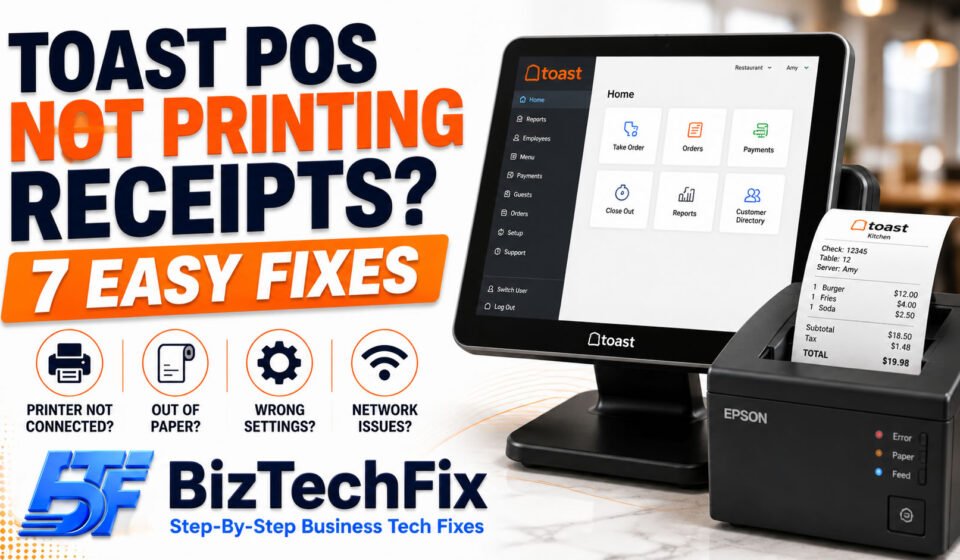
Toast POS Not Printing Receipts? 7 Easy Fixes
A Toast POS that stops printing receipts can throw off your entire service. Customers wait for a copy of their order, kitchen tickets stop coming out, and staff are left guessing what needs to happen next. If your Toast POS is not printing receipts, the cause is usually something simple, and most of the time you can get it working again in just a few minutes without needing a technician.
Why is Toast POS not printing receipts?
Before trying any fixes, it helps to understand what’s likely causing the problem. A Toast POS not printing receipts usually comes down to one of these common causes.
- Printer not connected properly: Loose USB, Ethernet, or power cables are one of the most frequent reasons a receipt printer stops working, even when everything looks fine on the POS screen.
- Printer set as offline in settings: Sometimes a printer gets marked offline within Toast’s settings, even though the printer itself is powered on and ready to print.
- Paper loaded incorrectly or out of paper: A printer that’s out of paper, or has paper loaded the wrong way, can show as connected while still failing to print anything.
- Outdated Toast POS software: Running an older version of the Toast software can cause printing bugs that get resolved in a later update.
- Printer driver or configuration issue: If a printer was recently added or replaced, an incorrect setup in Toast’s printer configuration can prevent receipts from printing correctly.
- Network connectivity problems: For printers connected over wifi or a shared network, a dropped connection can stop print jobs from reaching the printer at all.
Clover Flex Won’t Connect to Wifi? 8 Easy Fixes
How to fix Toast POS not printing receipts
Go through these steps one at a time. Most cases of Toast POS not printing receipts get resolved within the first few steps.
Step 1: Check the printer’s physical connection
Make sure the power cable and the USB or Ethernet cable are firmly plugged in on both ends. A cable that looks connected but isn’t fully seated is a common and easy-to-miss cause.
Step 2: Confirm the printer has paper
Open the printer and check that paper is loaded correctly, with the roll feeding in the right direction. Replace the roll if it’s empty or running low, since a printer can sometimes appear to work while it’s actually out of paper.
Step 3: Restart the printer and the Toast terminal
Turn the printer off, wait about ten seconds, then turn it back on. Restart your Toast terminal as well. This clears many temporary glitches that cause a Toast POS to stop printing receipts without any other obvious reason.
Step 4: Check the printer status in Toast settings
Go to your Toast POS settings and look for the printer configuration section. Confirm the printer shows as online and correctly assigned to the right printing station, since a printer marked offline here won’t print even if it’s working fine physically.
Step 5: Reassign or reconfigure the printer
If the printer is showing errors in the settings, try removing it and adding it back as a new printer. This resets the connection between Toast and the printer, which often resolves configuration issues on its own.
Step 6: Update your Toast POS software
Check for any pending software updates on your Toast terminal and install them if available. Keeping your software current is one of the simplest ways to avoid printing bugs that have already been fixed in newer versions.
Step 7: Check your network connection
If your printer connects over wifi or a shared network, confirm the connection is stable. A dropped or weak connection can prevent print jobs from reaching the printer, even when the rest of your Toast POS system appears to be working normally. For deeper connection issues, our Network Connectivity guides walk through fixing wifi and network problems affecting POS hardware.
When the issue might be the printer itself
If you’ve gone through every step and your Toast POS is still not printing receipts, the problem may be with the printer hardware rather than your POS settings. A worn print head, a failing connector, or an aging printer can all cause printing issues that troubleshooting alone won’t fix. Our Receipt Printers category covers common hardware issues by brand, including printers commonly paired with Toast POS systems.
When to contact Toast support
If none of the steps above get your printer working again, it’s worth reaching out to Toast’s official support team directly. They can help diagnose whether the issue is a deeper software fault or a hardware problem that needs a replacement part.
Preventing this from happening again
Once your printer is working again, a few simple habits can help avoid running into the same issue. Keep your Toast software updated regularly, check your printer’s paper supply at the start of each shift, and avoid unplugging cables unnecessarily during busy hours.
If your business relies on a stable network for printing, positioning your router centrally and limiting the number of connected devices can also reduce how often printing issues come up.
Frequently Asked Questions
How do I use the Toast POS system?
Toast POS is used through a touchscreen terminal where staff can take orders, process payments, and manage tickets. Training usually covers navigating the order screen, applying discounts, and closing out tickets at the end of a shift.
How much does Toast POS cost?
Toast POS pricing varies depending on hardware, software plan, and the size of your business. Costs typically include a monthly software fee along with hardware purchase or rental, so it’s best to request a quote directly from Toast for accurate pricing.
How do I run an annual sales report on Toast POS?
Annual sales reports can be generated through the Toast back office dashboard under the reporting section. From there, you can select a custom date range covering the full year to pull sales totals and other performance data.
Who owns Toast POS?
Toast POS is owned and operated by Toast, Inc., a publicly traded restaurant technology company that provides point of sale systems and related software for the restaurant industry.
How do I print a POS receipt in Windows?
If you’re using a Windows-based POS setup, receipts are typically printed through a connected receipt printer configured in your point of sale software’s printer settings, rather than through the standard Windows print dialog used for documents.