
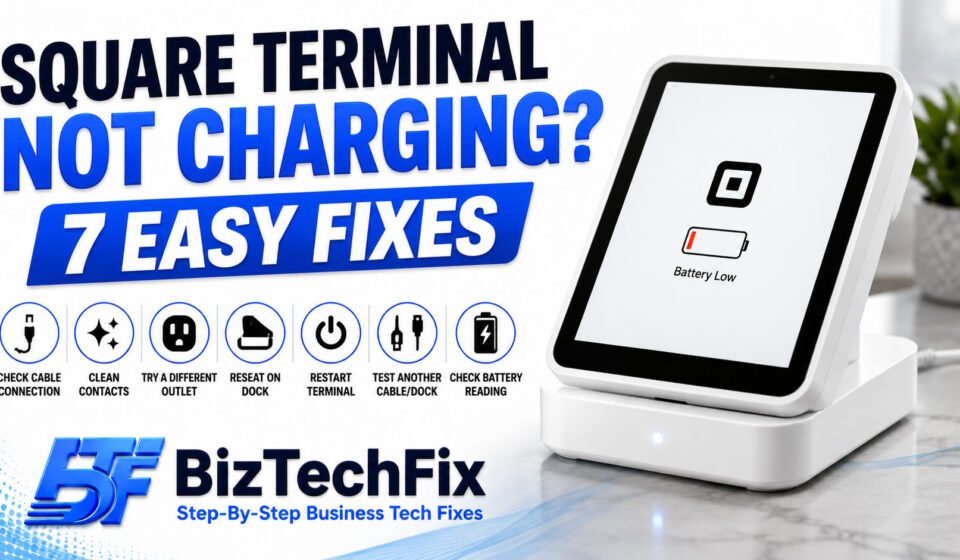
Square Terminal Not Charging? 7 Easy Fixes
A Square Terminal not charging can stop your business cold, especially if the battery runs out in the middle of a busy shift. No power means no payments, and every minute spent figuring out why can feel like lost sales.
If your Square Terminal is not charging, the cause is usually something simple, and most of the time you can get it powered back up without needing a replacement. This guide walks through the most common reasons behind a Square Terminal not charging, along with clear steps to fix it.
Why is my Square Terminal not charging?
Before trying any fixes, it helps to understand what’s likely causing the problem. A Square Terminal not charging usually comes down to one of these common causes.
- Loose or faulty charging cable: A cable that isn’t fully plugged in, or one that’s worn out, is one of the most common reasons a Square Terminal won’t charge properly.
- Dirty charging contacts: Dust or debris on the dock’s charging contacts or the terminal itself can prevent a proper connection, even when everything looks plugged in correctly.
- Faulty power outlet or adapter: Sometimes the issue isn’t the terminal or the dock at all, but the wall outlet or power adapter supplying electricity to the setup.
- Terminal not seated properly on the dock: If the Square Terminal isn’t placed correctly on its charging dock, it may show as connected without actually charging.
- Battery health issues: Like any rechargeable device, a Square Terminal’s battery can degrade over time, leading to slow charging or a battery that won’t hold a charge at all.
- Software glitch affecting battery reporting: Occasionally the terminal is charging normally, but a software issue causes the battery percentage shown on screen to be inaccurate.
Toast POS Not Printing Receipts? 7 Easy Fixes
How to fix a Square Terminal that’s not charging
Go through these steps one at a time. Most cases of a Square Terminal not charging get resolved within the first few steps.
Step 1: Check the charging cable and connections
Make sure the charging cable is firmly plugged into both the dock and the power outlet. A loose connection here is one of the most frequent reasons behind a Square Terminal not charging, so try disconnecting and reconnecting it to confirm it’s properly seated on both ends.
Step 2: Clean the charging contacts
Gently wipe down the metal contacts on both the dock and the bottom of the Square Terminal with a dry cloth. Built-up dust or grime can block the connection needed for charging to work.
Step 3: Try a different power outlet
Plug the charging dock into a different outlet to rule out a faulty socket. If the terminal starts charging in a new outlet, the original outlet or its wiring may be the actual problem.
Step 4: Reseat the terminal on the dock
Remove the Square Terminal from its dock, then place it back carefully, making sure it sits flush and aligned with the charging contacts. A Square Terminal not charging is often caused by a terminal that’s slightly off center, even though it looks properly placed.
Step 5: Restart the Square Terminal
Hold down the power button until you see the option to restart the device. A restart can resolve software glitches that sometimes affect how charging status is displayed on screen.
Step 6: Test with a different cable or dock, if available
If you have access to another Square charging cable or dock, try swapping it in. This helps determine whether the issue is with the terminal itself or with the charging accessories.
Step 7: Check for a stuck or inaccurate battery reading
If the terminal feels warm and seems to be charging but the battery percentage isn’t moving, leave it connected for a while longer before assuming it’s not charging at all. Sometimes the displayed percentage lags behind the actual charge level.
For issues affecting other business hardware, our Peripherals & Accessories category covers common problems with the devices connected to your POS setup.
Clover Flex Won’t Connect to Wifi? 8 Easy Fixes
When the problem might be the battery or hardware
If you’ve worked through every step and your Square Terminal is still not charging, the battery itself may be worn out, or there could be a hardware fault with the charging port. A Square Terminal not charging after all these steps usually points to a hardware issue rather than a settings problem. Batteries naturally lose capacity over time, especially with heavy daily use in a busy retail or restaurant environment.
Our POS Terminals category covers more troubleshooting guides for POS hardware issues across different brands and models.
When to contact Square support
If none of the steps above get your Square Terminal charging again, it’s worth reaching out to Square’s official support team directly. They can help determine whether the issue is covered under warranty or if a replacement part is needed.
Preventing this from happening again
Once your Square Terminal is charging properly again, a few simple habits can help avoid a Square Terminal not charging issue from coming back. Keep the charging contacts clean, avoid yanking the cable when disconnecting it, and place the terminal on its dock fully each time rather than leaving it partially seated.
If your business runs on a single terminal, it’s also worth keeping a spare charging cable on hand in case the original one wears out unexpectedly.
Frequently Asked Questions
How do I use Square?
Square is used through its point of sale app or terminal, where you can ring up items, accept various payment methods, and track sales. Getting started typically involves setting up your item library and connecting your preferred hardware.
How do I set up Square?
Setting up Square involves creating an account, adding your business details, and connecting your chosen hardware, such as a Square Terminal or reader. From there, you can customize your item catalog and configure payment settings before taking your first sale.
How do I connect a Square reader?
A Square reader connects either through Bluetooth or a direct plug-in connection, depending on the model. Once paired with the Square app on your phone or tablet, it should be ready to accept card payments.
How do I use the Square reader?
To use a Square reader, open the Square app, start a sale, and tap, insert, or swipe the customer’s card when prompted. The app will guide you through completing the transaction and providing a receipt.
How do I charge the Square reader dock?
The Square reader dock charges by connecting its included cable to a power source, typically a USB port or wall adapter. Once connected, placing the reader on the dock allows it to charge while also keeping it ready for use at the counter.