
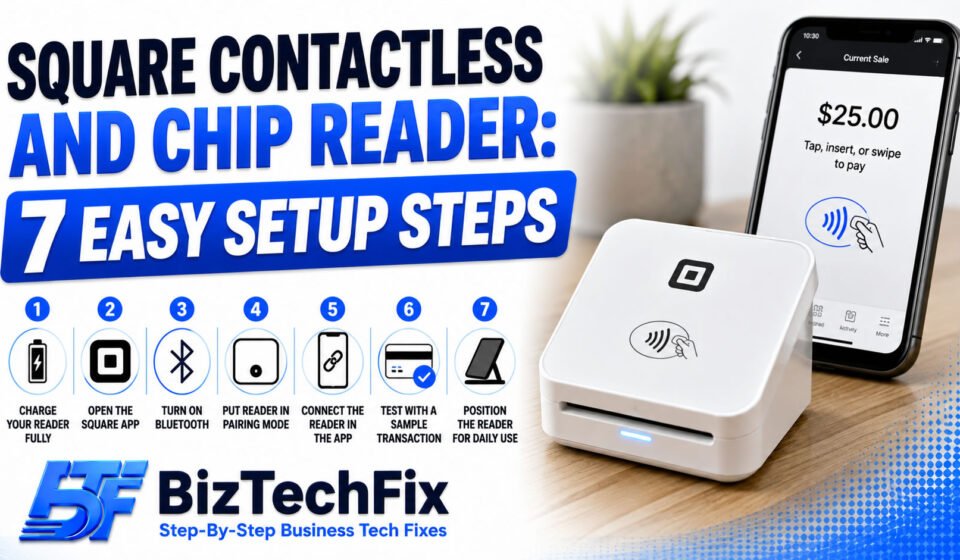
Square Contactless and Chip Reader: 7 Easy Setup
A Square contactless and chip reader is one of the most popular ways for small businesses to accept card payments, whether you’re running a pop-up shop, a food stall, or a full retail counter. Getting it set up correctly the first time saves you from connection issues and failed payments down the line.
This guide walks through everything you need to know to get your Square contactless and chip reader working, along with common questions business owners ask when setting one up.
What is a Square contactless and chip reader?
A Square contactless and chip reader is a small card reader that connects to your phone or tablet through Bluetooth, allowing you to accept chip cards, tap payments, and other contactless methods anywhere you do business.
Unlike the older magstripe-only readers, this square card reader supports modern payment methods, which most customers now expect when paying by card.
Square Terminal Not Charging? 7 Easy Fixes
What you’ll need before setting up
- A charged square reader: Make sure your device has enough battery before pairing, since a low charge can interrupt the setup process.
- The Square app installed: Download the Square Point of Sale app on your phone or tablet from the App Store or Google Play.
- Bluetooth enabled: Your phone or tablet’s Bluetooth needs to be turned on for the reader to pair successfully.
- A Square account: You’ll need an active Square account signed in on the app before you can connect any hardware.
How to set up a Square card reader
Follow these steps in order to get your reader connected and ready to accept payments.
Step 1: Charge your reader fully
Before doing anything else, charge your Square contactless and chip reader using the included cable. A full charge ensures the pairing process goes smoothly and the reader doesn’t disconnect midway.
Step 2: Open the Square app
Launch the Square Point of Sale app on your phone or tablet and sign in with your Square account. If you don’t have the app yet, download it before continuing.
Step 3: Turn on Bluetooth
Go to your device’s settings and make sure Bluetooth is switched on. The Square contactless and chip reader connects wirelessly, so this step is required before pairing can happen.
Step 4: Put the reader in pairing mode
Press and hold the button on the side of your Square contactless and chip reader until you see a flashing light. This puts the device into pairing mode so your phone or tablet can find it.
Step 5: Connect the reader in the app
Inside the Square app, go to Settings, then Hardware, and select the option to connect a new reader. Your Square contactless and chip reader should appear in the list. Tap it to complete the pairing.
Step 6: Test with a sample transaction
Run a small test sale to confirm the square contactless and chip reader is working correctly, accepting either a tap, chip insert, or swipe depending on the card used.
Step 7: Position the reader for daily use
Once connected, decide where you’ll keep your Square contactless and chip reader during business hours, whether that’s handheld, on a stand, or docked at a fixed checkout counter.
For related hardware questions, our Peripherals & Accessories category covers common issues with card readers and other connected devices.
Toast POS Not Printing Receipts? 7 Easy Fixes
What devices are compatible with Square?
Square readers generally work with most modern iOS and Android phones and tablets, as long as Bluetooth is supported. This includes many Samsung tablets, so a Square reader is compatible with Samsung tablet models that meet the minimum software requirements listed by Square.
Before purchasing, it’s worth checking Square’s official compatibility list to confirm your specific device model is supported.
Where to buy a credit card reader
A Square contactless and chip reader can be purchased directly from Square’s website, or through major retailers that carry payment hardware. Buying directly from Square is often the safest option, since it guarantees you’re getting genuine hardware backed by official support.
If none of the setup steps above resolve an issue with your Square contactless and chip reader, reach out to Square’s official support team for further help.
Troubleshooting common setup issues
If your Square contactless and chip reader isn’t pairing or connecting properly, a few quick checks can help. Restart both your phone and the reader, confirm Bluetooth is turned on, and make sure the reader has enough charge to stay powered during pairing.
For terminal-specific issues beyond the reader itself, our POS Terminals category has additional troubleshooting guides.
Clover Flex Won’t Connect to Wifi? 8 Easy Fixes
Frequently Asked Questions
How do I set up a Square card reader?
Setting up a Square card reader involves charging the device, installing the Square app, enabling Bluetooth on your phone or tablet, and pairing the reader through the app’s hardware settings before running a test transaction.
How do I use a Square reader?
To use a Square reader, start a sale in the Square app, then tap, insert, or swipe the customer’s card when prompted. The app guides you through completing the transaction and sending a digital or printed receipt.
What devices are compatible with Square?
Most modern iOS and Android phones and tablets with Bluetooth support are compatible with Square readers, including many popular Samsung tablet models, though it’s best to check Square’s official device list before buying.
Where can I buy a credit card reader?
Credit card readers, including Square’s contactless and chip reader, can be purchased directly through Square’s website or from authorized retailers that sell payment hardware.
Is Square compatible with a Samsung tablet?
Square is compatible with many Samsung tablet models, provided the tablet meets the minimum operating system and Bluetooth requirements listed on Square’s official compatibility page.